Prompt-led direction
Describe the subject, setting, camera movement, lighting, and mood in plain language. A concise prompt gives the system a visual brief to interpret rather than a list of editing commands.
Try prompt-led videoPlatform guide
Luma Labs online is the browser-based surface for turning a short idea, image, or scene direction into an AI-generated video. Instead of assembling a traditional editing timeline first, you begin with intent, review a visual result, and refine the parts that matter.
| Attribute | Online workspace | Traditional workflow |
|---|---|---|
| Starting point | Prompt or reference image | Footage usually required |
| Core task | Generate and iterate scenes | Edit captured material |
| Browser access | Designed for online use | Often depends on installed software |
| Visual feedback | Preview variations quickly | Review edits on a timeline |
| Camera direction | Describe movement and framing | Capture or keyframe manually |
| Best fit | Concepts, social clips, storyboards | Final editorial assembly |
01 / Mechanism
Describe the subject, setting, camera movement, lighting, and mood in plain language. A concise prompt gives the system a visual brief to interpret rather than a list of editing commands.
Try prompt-led videoUse a still image as a visual anchor when a character, product, composition, or art direction needs to remain recognizable while the scene gains motion.
Explore image animationGenerate a useful direction, inspect the preview, then adjust one variable at a time. This makes the online process better suited to exploration than trying to perfect every word before the first result.
Start a creative iterationWork from a moment that needs to exist on screen: a reveal, a product turn, a landscape move, or a transition. The result can become a storyboard reference or a finished short clip.
Build a scene concept02 / Visual check
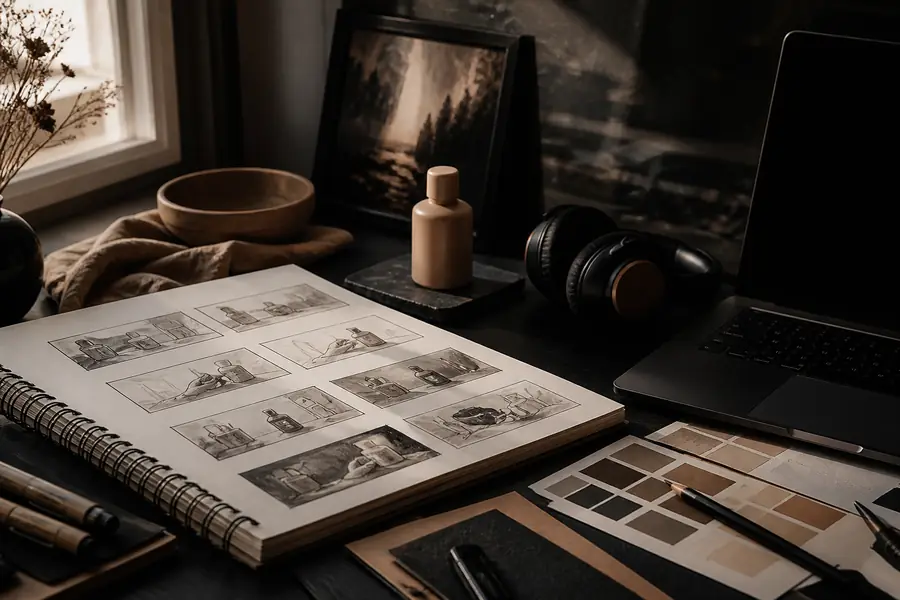
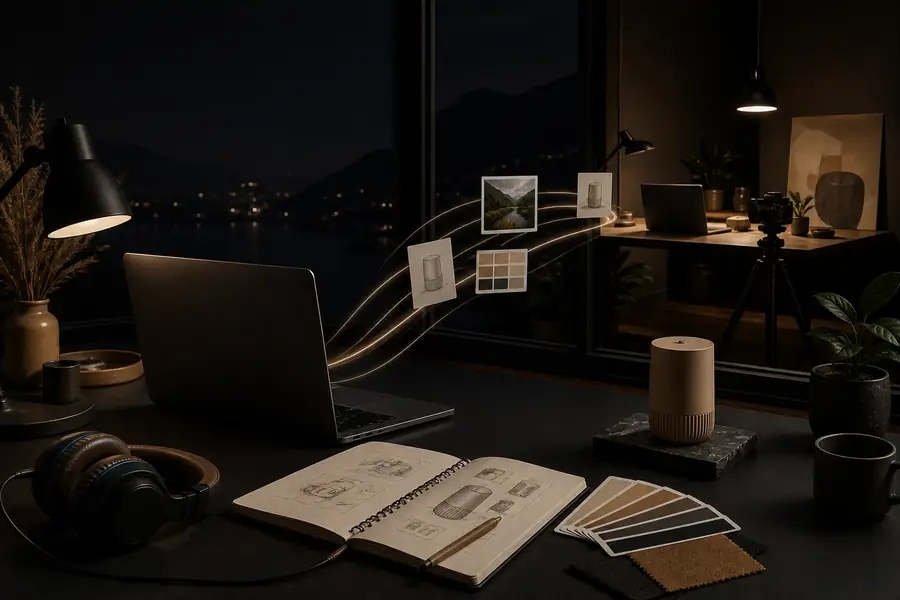
The useful shift is not simply image versus video. It is the ability to test timing, camera energy, and atmosphere before committing to a larger production workflow.
03 / Limits
Short generated clips may not preserve the same character, wardrobe, or geography across a long sequence without careful planning.
Workaround: create a shot list and use consistent reference material for each connected scene.
Small lettering, packaging copy, and precise brand marks can change or soften during generation.
Workaround: add critical typography and identity elements during a later edit.
An online generator is not a replacement for frame-accurate compositing, audio mixing, or a complete editorial timeline.
Workaround: treat the generated clip as source material and finish it in your preferred editor.
Vague directions can produce attractive but inconsistent results because the system must invent missing visual decisions.
Workaround: specify subject, action, lens feel, camera movement, environment, and lighting.
04 / Workflow
State what is visible first, then add the action and camera behavior. “A red train passes through a rainy coastal town, slow tracking shot” is more useful than “make it cinematic.”
Start with text for open-ended exploration, or provide an image when composition, subject identity, or product appearance needs a firmer starting point.
Compare the preview against the original intent. Change one or two details per pass so you can tell which instruction improved the result.
Use the selected clip as a deliverable for a short format or as a building block for editing, sound, captions, and final color work.
05 / Readiness
It refers to using Luma Labs through its web-based creative workspace, where you can enter directions, provide visual references, review generated previews, and develop short video concepts online.
Access and available generation options can change over time. Check the current workspace experience for the limits and features attached to your route before planning a larger batch of work.
Yes. The basic loop is approachable: describe a scene, inspect the result, and refine the direction. Better results usually come from clearer visual language rather than technical editing knowledge.
It is better understood as an AI video generation and exploration surface. For detailed cuts, audio, typography, and frame-level control, move the selected output into a dedicated editor.